If you've ever lost money on a change order you couldn't prove was approved, you already know why this matters.
Change orders are where construction profit is either protected or lost. And the single biggest reason contractors lose money on them isn't that they forgot to bill—it's that they never documented the approval in the first place. A verbal "go ahead" on a Tuesday afternoon becomes a disputed charge three months later, and without a timestamped record, you eat the cost.
The fix is simpler than you think. In this tutorial, you'll learn how to create a complete, defensible digital change order in under five minutes—with backup documentation, client approval tracking, and automatic sync to your accounting software.
No training manual. No IT department. Just a phone and five minutes.
What You'll Need Before You Start
Before you create your first digital change order, gather these three things:
1. The original scope. You need to know what was already included in the contract so you can clearly define what's changing. If the original scope lives in a paper contract or a PDF, have it accessible.
2. The change details. What's being added, removed, or modified? Be specific. "Added skylight in master bath" is better than "extra work in bathroom."
3. The cost breakdown. Labor, materials, equipment, and any subcontractor costs. Even a rough breakdown is better than a lump sum—it makes the change order defensible if the client questions the price.
If you have photos from the site showing the condition that triggered the change, even better. Those photos become part of your backup package.
Step 1: Open Your Project and Select "Change Orders"
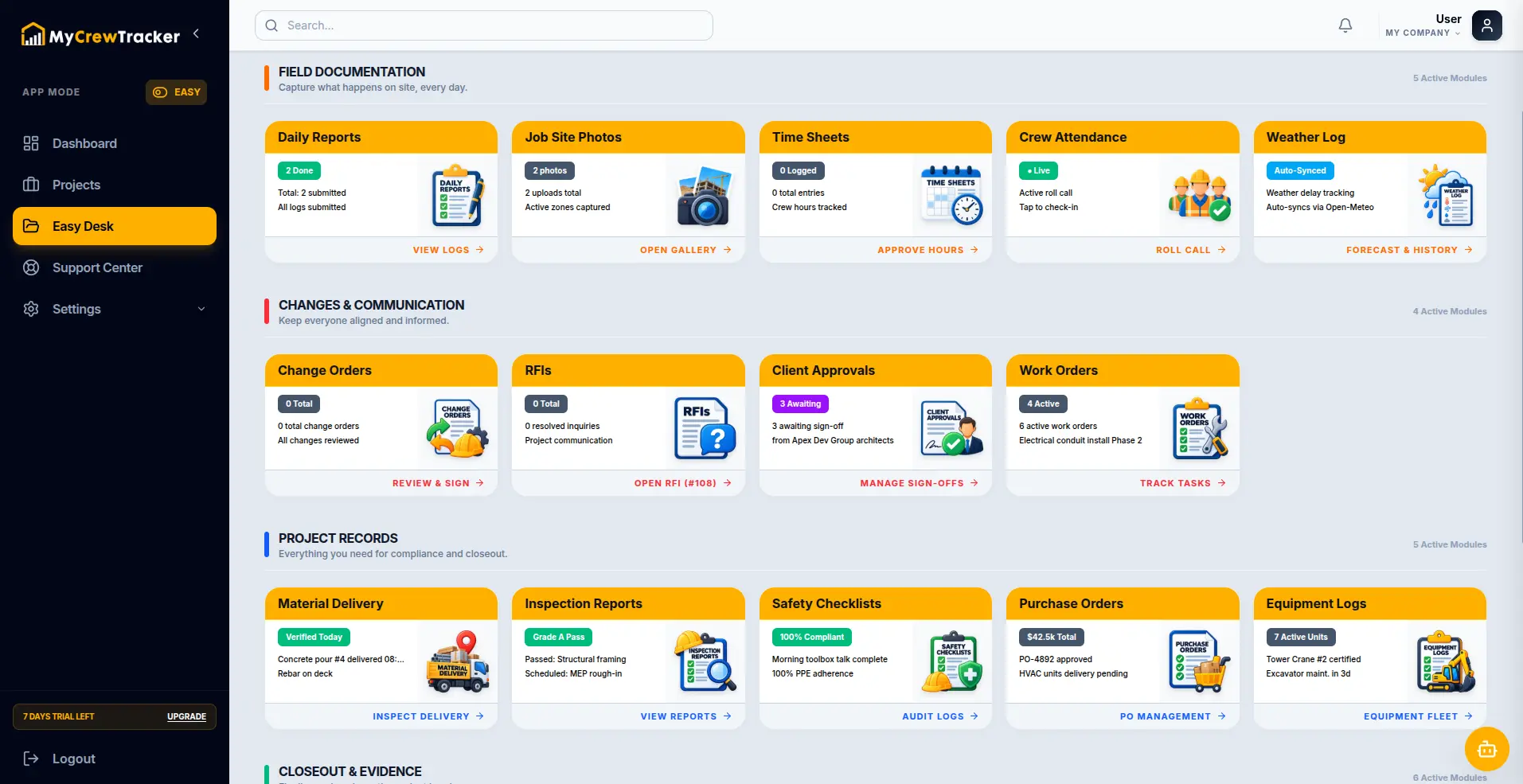
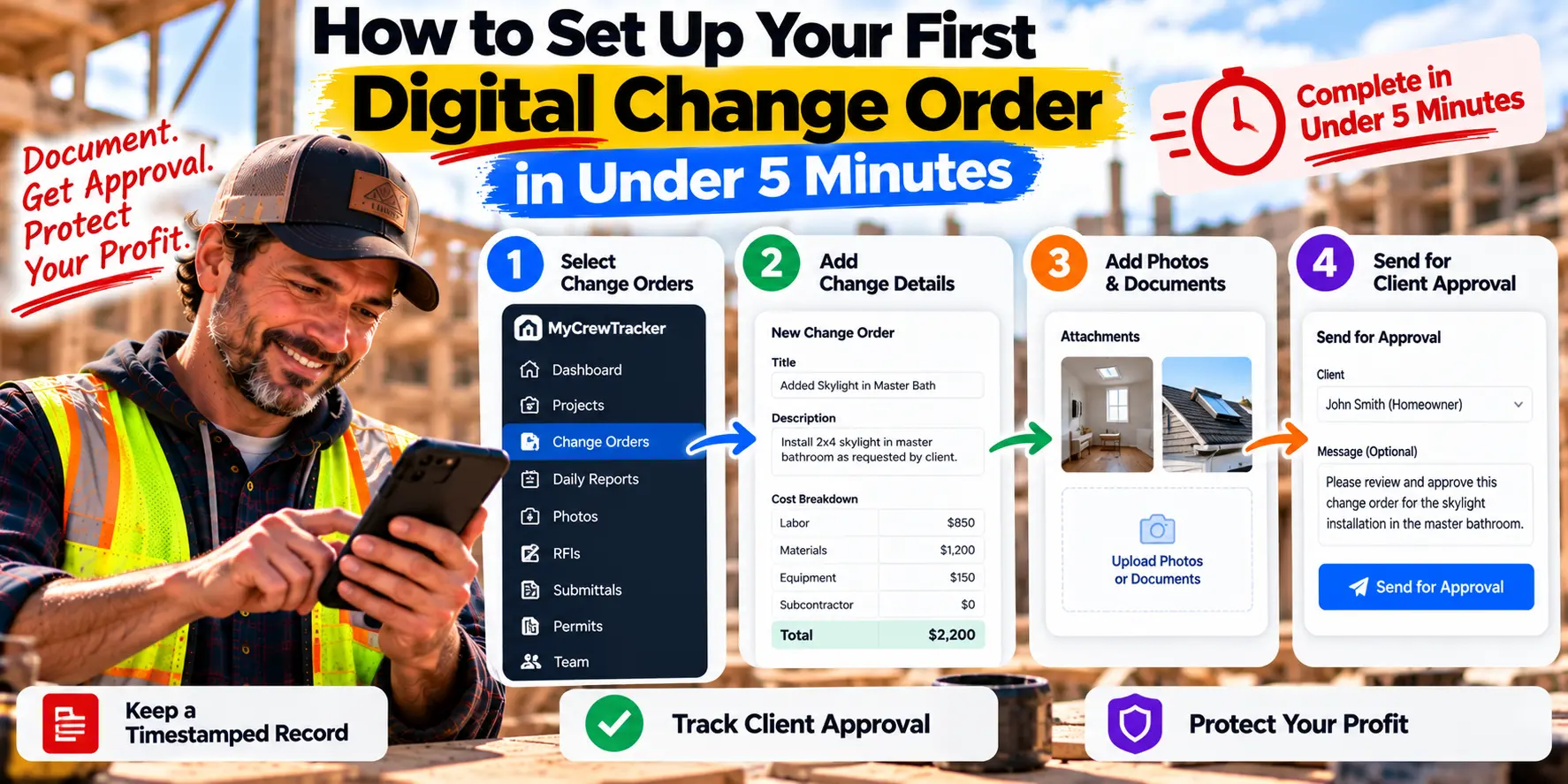
Log into MyCrewTracker on your phone or desktop. Navigate to the project where the change is happening. From the project dashboard, select Change Orders from the menu.
You'll see your existing change order log—every change order on this project, with its current status. If this is your first one, the log will be empty. That's fine. The log fills automatically as you create change orders, and it becomes your audit trail if a dispute ever arises.
Time elapsed: 30 seconds.
Step 2: Tap "New Change Order"
Tap the New Change Order button. You'll see a simple form with fields for the change order details.
Don't be intimidated by the form. Most fields are optional, and you can save a draft at any point if you get interrupted. The goal is to capture the essential information—not to fill out every field perfectly.
Time elapsed: 45 seconds.
Step 3: Enter the Change Order Basics
Fill in these fields:
Title: A short, descriptive name. "Master Bath Skylight Addition" is better than "Change Order 7."
Date: Today's date. This is when the change was requested or identified.
Description: A clear statement of what's changing. Be specific enough that someone reading it six months from now understands exactly what was agreed to.
Cost: The total amount of the change. If you have a breakdown—labor, materials, subcontractor—enter those too. The platform will calculate the total.
Time impact: If the change affects your schedule, note the number of days added or removed. This matters for delay claims later.
Here's an example of a well-written description:
"Client requested addition of one 2'x4' skylight in master bathroom ceiling. Includes framing modifications, flashing, and roofing work by subcontractor. Original scope included standard ceiling framing and finish only. No skylight was included in the base contract."
That description does three things: it states what's being added, it clarifies what was already included, and it creates a record that the change was outside the original scope.
Time elapsed: 2 minutes.
Step 4: Attach Your Backup Documentation
This is the step most contractors skip—and it's the step that saves you money.
Tap Attach Files and add anything that supports the change:
Photos of the condition that triggered the change
The original scope (contract page, estimate line item, or plan detail)
Email or text where the client requested or approved the change
Subcontractor quote if the work is being subbed out
Any sketches or marked-up drawings showing the change
The more complete your backup, the harder it is for a client to dispute the charge. And because MyCrewTracker organizes everything by project and date, you'll never have to hunt for these documents later.
Time elapsed: 3 minutes.
Step 5: Add Client Approval Tracking
This is the feature that makes digital change orders different from paper ones.
In the approval section, enter the client's name and email address. When you send the change order, MyCrewTracker sends them a notification and logs the date and time it was sent. When they approve, the platform timestamps the approval and stores it with the change order.
This creates a defensible record that answers three critical questions:
Was the change order sent?
When was it sent?
Did the client approve it, and when?
If a client ever disputes a charge, you have the answer—documented, timestamped, and stored in the platform. No more "I don't remember approving that."
Time elapsed: 4 minutes.
Step 6: Send and Log
Review your change order one final time. Check the description, the cost, and the attached documentation. Then tap Send.
MyCrewTracker sends the change order to your client, logs the send date, and adds the change order to your project log with a Pending Approval status. If you have QuickBooks integration enabled, the change order data will sync automatically when approved—no manual entry required.
The entire process takes less than five minutes. And the change order is now documented, timestamped, and protected.
Time elapsed: 5 minutes.
What Happens After You Send
Once your change order is sent, the platform tracks it through its lifecycle:
Pending Approval. The client has received it but hasn't responded. The change order is visible in your log with a clear status.
Approved. The client has signed off. The approval is timestamped, and the change order amount is now billable. If QuickBooks integration is enabled, the data syncs automatically.
Rejected or Modified. The client wants changes. You can revise the change order and resend it, with both versions stored in the log for reference.
Completed and Billed. The work is done and the change order has been included in a payment application.
Every step is logged. Every status change is timestamped. And the entire history of the change order—from creation to approval to billing—lives in one place.
Common Mistakes to Avoid
Even with a five-minute setup, there are a few mistakes that undermine the value of a digital change order:
Waiting too long to create it. The best time to document a change order is the moment the change is identified. Waiting a week means fuzzy details and missing photos. Create it while you're still on site.
Skipping the photos. Photos are your strongest defense against disputes. If you don't have a photo of the condition that triggered the change, the client can argue the change wasn't necessary.
Using vague descriptions. "Extra work" is not a description. Be specific about what changed and why. If someone reading it six months from now can't understand the scope, rewrite it.
Forgetting the original scope reference. The strongest change orders explicitly state what was in the original contract and what's being added. This eliminates the "I thought that was included" argument.
Not tracking approval. A change order without a client approval is just a proposal. Tracking the approval—with a timestamp—is what makes it billable.
Why This Matters More Than Ever
Change orders are where small contractors either protect their margin or lose it. And the data on how often they get lost is sobering.
Research shows that 53% of organizations have experienced delayed final accounts because of documentation or data gaps. Change orders are where those gaps hurt most. For small contractors, the math is brutal—legal costs for pursuing a claim often exceed the value of the damages, so most contractors eat the cost and move on.
A digital change order eliminates the gap. It documents the change in real time, captures the client's approval with a timestamp, and creates a record that stands up to scrutiny. No more eaten costs. No more disputed charges. No more "we'll sort it out later."
The Bottom Line
Creating a digital change order takes less than five minutes. It requires no training, no IT support, and no special equipment. And it protects your margin on every job.
The contractors who thrive in 2026 won't be the ones who win the most work. They'll be the ones who get paid for the work they've already done. Digital change orders are how you make that happen.
MyCrewTracker includes complete change order management with client approval tracking, photo documentation, and automatic QuickBooks sync—all at $40/month flat with unlimited projects, unlimited documents, and unlimited users. And it comes with a 14-day full-feature free trial—no credit card required.
Set up your first digital change order this week. Load a real project. Send a real change order. See how it feels to have a record that protects your profit.
Ready to create your first digital change order? Start your 14-day free trial of MyCrewTracker and set one up in under five minutes. No credit card required.