On almost every construction project that ends in a hostile closeout dispute, an uncomfortable meeting takes place between the contractor's bookkeeper, the project manager, and the general contractor’s accounting department.
Your company submits Pay Application #6 for $148,000. Included in that billing is $32,500 for extra electrical conduits, plumbing reroutes, and structural framing modifications that your field crew completed over the last 45 days.
Five days later, the general contractor’s project manager emails back your entire pay application with a red line through the extra work line items and a blunt note:
"Pay Application #6 is rejected. You have billed for Change Order Requests #04, #05, and #07. These are unapproved CORs. We have not received an executed prime change order from the building owner, so these items cannot be added to your Schedule of Values. Please revise and resubmit your pay application for base-contract work only."
Suddenly, your anticipated cash flow evaporates. You have already paid your craft workers their wages and paid supply houses for the materials. You are floating tens of thousands of dollars in financing on behalf of the owner because someone on your team confused a Change Order Request (COR) with an Approved Change Order.
Below is the definitive contractor guide to understanding the complete change order lifecycle, eliminating billing rejections, and maintaining a live, audit-proof Change Order Log that guarantees you get paid for every dollar of out-of-scope work.
The Change Order Lifecycle: PCO vs. COR vs. Approved Change Order
In construction administration, terminology matters. Conflating proposals with executed contracts is the single fastest way to destroy cash flow. Here is the legal progression of out-of-scope work:
| Document Type | Who Generates It? | Legal Status | Can You Bill for It on Pay App? |
|---|---|---|---|
| Potential Change Order (PCO) | Field Foreman / PM / Estimator | Internal placeholder or early notification that a scope change or field conflict has occurred. No formal price yet. | NO. Never billable. |
| Change Order Request (COR / COP) | Subcontractor or General Contractor | Formal price and schedule proposal submitted to the upstream party, complete with labor/material backup. | NO. It is only an offer to amend the contract until formally countersigned. |
| Construction Change Directive (CCD) | Architect / Owner / Prime GC | Unilateral order directing immediate work before price is finalized (AIA G714). | PARTIALLY. Only for undisputed direct costs if expressly permitted by contract. |
| Approved Change Order (CO) | Executed by All Parties | Legally binding contract amendment that modifies the contract sum and substantial completion date. | YES. Fully billable on AIA G702/G703 Schedule of Values. |
The Number One Rule of Construction Billing:
Never add a Change Order Request (COR) to your formal Schedule of Values (SOV) until you hold a fully executed Change Order signed by the authorized general contractor executive or property owner. Billed unapproved CORs provide GCs with a contractual excuse to reject your entire monthly application, delaying your base contract payments by 30 to 60 days.
Anatomy of a Bulletproof Change Order Log (The 9 Essential Fields)
A Change Order Log is not just an administrative summary; it is your company’s financial insurance policy. If a project ends in mediation, the arbitrator will ask for your contemporary log before reading a single email.
Your Change Order Log must track these nine mandatory data columns for every single scope deviation:
-
Internal COR Number: Sequential identifier (e.g.,
COR-001,COR-002). Never reuse numbers, even if an item is withdrawn or voided. - Date Identified & Date Submitted: Proves compliance with strict contractual notice deadlines (e.g., 5-day or 14-day notice clauses).
- Description of Scope & Reference Documents: A clear, concise summary tied to specific jobsite triggers: "Reroute 4-inch sanitary drain around unforeseen structural grade beam per RFI-024 response and Drawing Revision AD-03."
- Proposed Amount (Requested Sum): The full value submitted to the GC, broken down into direct labor, material receipts, equipment rentals, sub-tier costs, and allowable overhead/profit markup.
- Proposed Schedule Impact (Days Requested): Calendar days added to your contractual completion date. Never leave this blank or write "TBD." (See our guide on how to calculate schedule impact days).
-
Current Approval Status: Must be categorized under one of five standardized states:
Draft,Submitted / Pending,Under Review,Approved, orRejected / Void. -
Approved Change Order Number: The official prime or subcontract amendment identifier assigned by the upstream payer (e.g.,
Subcontract CO #03). - Approved Amount & Approved Days: The final negotiated sum and time extension granted in writing.
- Billing Status & Schedule of Values (SOV) Line Item: Records which pay application (e.g., Pay App #07, Line Item 42) billed the approved sum and whether payment has been received.
Live Change Order Log Format (Standard Spreadsheet Layout)
Here is how professional commercial subcontractors and general contractors structure their live log during active projects:
| COR # | Date Sub. | Scope Description / Reference | Req. Amount | Days | Status | Appr. CO # | Appr. Amount | SOV Line / Billed |
|---|---|---|---|---|---|---|---|---|
| COR-001 | 10/04/2026 | Demo unforeseen brick infill behind drywall (RFI-008) | $4,850 | 2 | Approved | CO-01 | $4,850 | Line 24 (Billed App #04) |
| COR-002 | 10/12/2026 | Upgrade lobby lighting package to LED dimming spec | $12,400 | 0 | Approved | CO-02 | $11,800 | Line 25 (Billed App #05) |
| COR-003 | 10/18/2026 | Reroute sanitary main around unexpected grade beam | $8,950 | 4 | Under Review | Pending | -- | Not Billed (Pending Exec.) |
| COR-004 | 10/24/2026 | Emergency weekend generator connection for curing | $3,600 | 0 | Rejected | Void | $0 | Deemed Base Contract |
The Weekly Change Order Review SOP (Eliminating Owner Ghosting)
General contractors and owners love to let change order requests sit in "Review" status until substantial completion. The longer a COR sits unresolved, the more leverage the owner has to negotiate a discounted lump-sum settlement at closeout when you are desperate for your retainage check.
Implement this 3-step project management SOP to prevent your change order requests from going stale:
1. Mandatory Attachment to Every Weekly Owner-Architect-Contractor (OAC) Meeting
Never attend a weekly coordination meeting or OAC jobsite conference without distributing your updated Change Order Log as Agenda Item #1. Force the GC project manager to state on the official meeting minutes why pending CORs have not been signed.
2. The 10-Day "Notice of Deemed Approval or Stop-Work" Protocol
If your contract contains a clause requiring the upstream party to respond to change requests within 10 business days, issue a formal follow-up notice on Day 11 stating: "COR-003 has been pending review for 14 calendar days. Please be advised that continued delay in issuing an approved Change Order impacts material procurement lead times and will cause compounding critical-path schedule delays."
3. Synchronize the Field with Accounting
Your field superintendent and your office bookkeeper must share the same live view. When a superintendent signs a ticket in the field, your bookkeeper should immediately see the draft entry. When the prime contract change order is signed, accounting can immediately unlock the line item on your pay application.
Why Excel Spreadsheets Fail for Change Order Tracking
Over 70% of specialty contractors still manage change orders on desktop spreadsheets. This creates four dangerous failure points:
- Version Confusion: The PM has
Change_Order_Log_v3_Final.xlsxon his laptop, while the field foreman is working fromv2in his truck, leading to conflicting numbers. - Missing Attachment Links: When an owner demands proof six months later, nobody can find the PDF of the signed tailgate ticket or the supplier receipt that justified line 14.
- Double Billing or Unbilled Scope: Approved change orders get lost in the transition between Excel and accounting software, leaving thousands in unbilled work on the table.
- No Audit Trail: Spreadsheets don't record who edited a cell, when an approval timestamp occurred, or who authorized a price deduction.
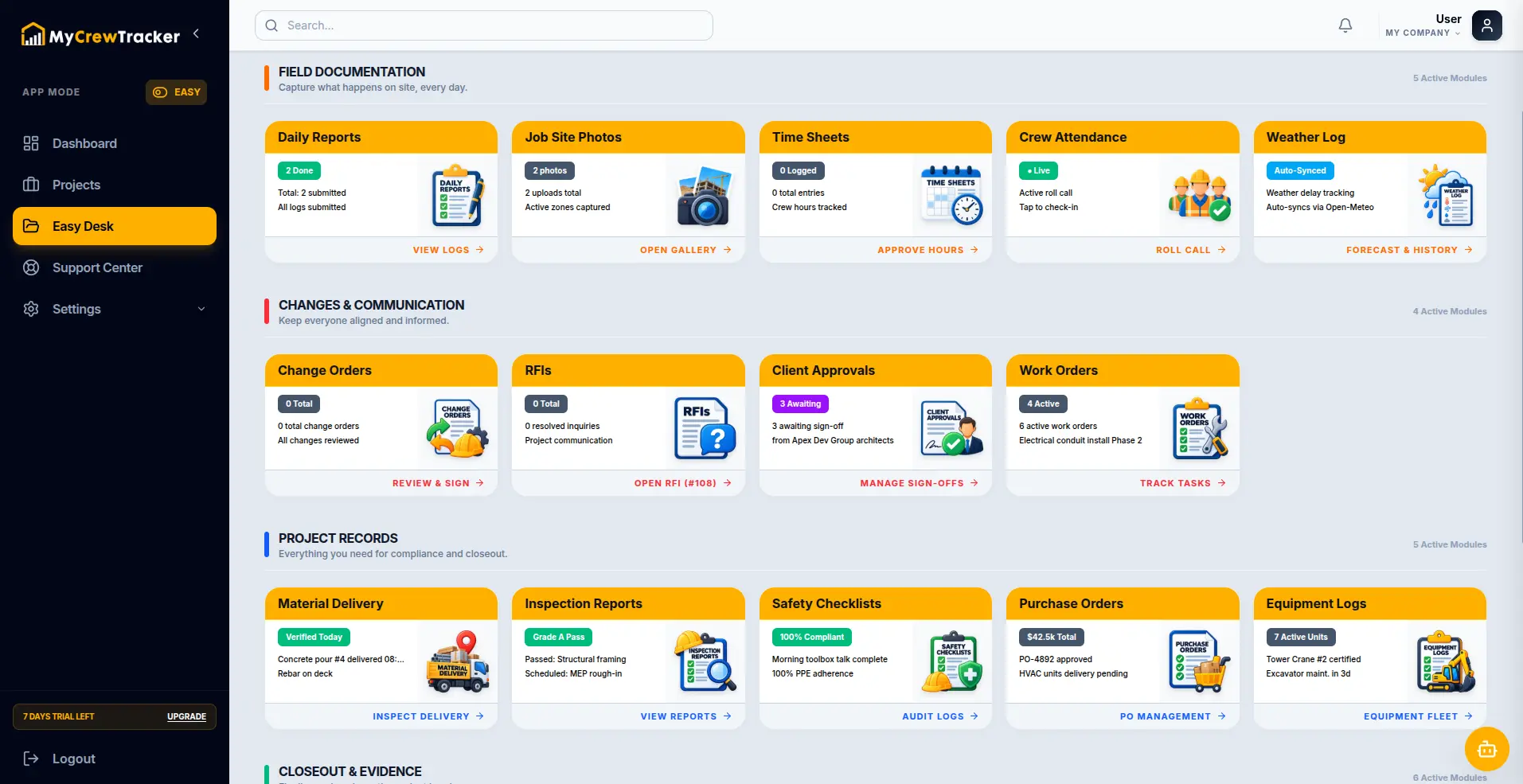
How MyCrewTracker Delivers Real-Time Change Order Control
MyCrewTracker replaces messy desktop spreadsheets with a continuous, connected digital change order workflow:
- Live Cloud Change Order Log: Automatic numbering, status categorization, and real-time syncing between your field foremen, project managers, and office accounting staff.
- One-Click Conversion from Daily T&M Tickets: Turn approved field tickets directly into formal Change Order Requests without re-entering labor hours or material receipts. Learn about our T&M Tag Workflow.
- Built-In E-Signatures & Client Approvals: Capture client approvals directly on mobile or send digital sign-off links via email with full audit trails. Explore our Change Orders Feature.
- Automatic Invoice & QuickBooks Integration: Seamlessly lock in approved change orders as new line items on your progress invoices, preventing billing rejections. See our Invoice Records System.
Eliminate Billing Rejections & Get Paid Faster
Track every pending and approved change order in one unified platform. Stop floating cash for owners and lock down your project margins today.